ReluxDesktop – Luminaire dimming
Adjust your luminaires.
Explanation
Luminaires placed within a scene can be dimmed individually. This means that both the RGB colour value of a luminaire and its luminous flux (Phi) can be adjusted. For luminaires with a separate white component – known as RGBW luminaires – it is also possible to adjust this component. The dimming values are evaluated in all available calculation modes in ReluxDesktop.
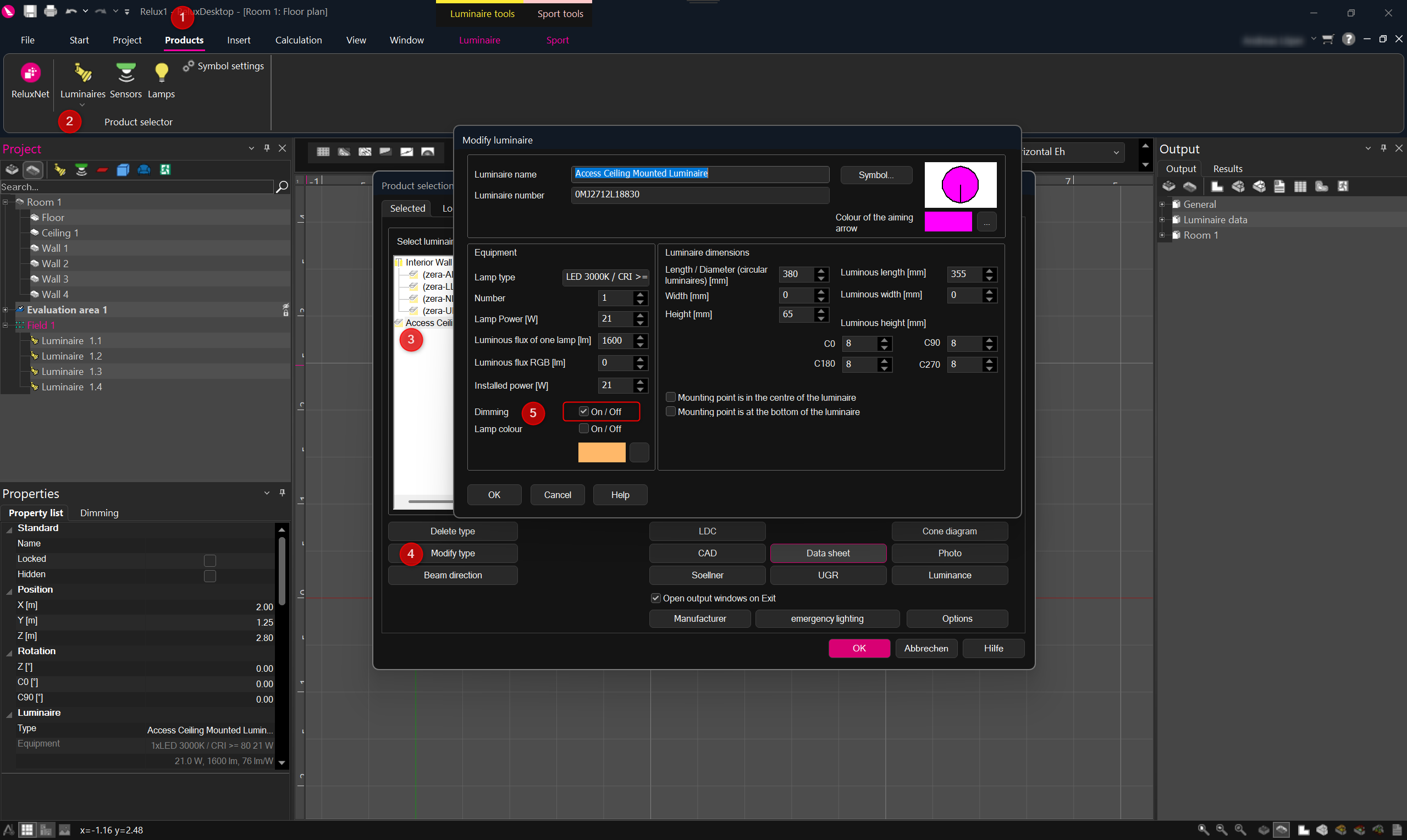
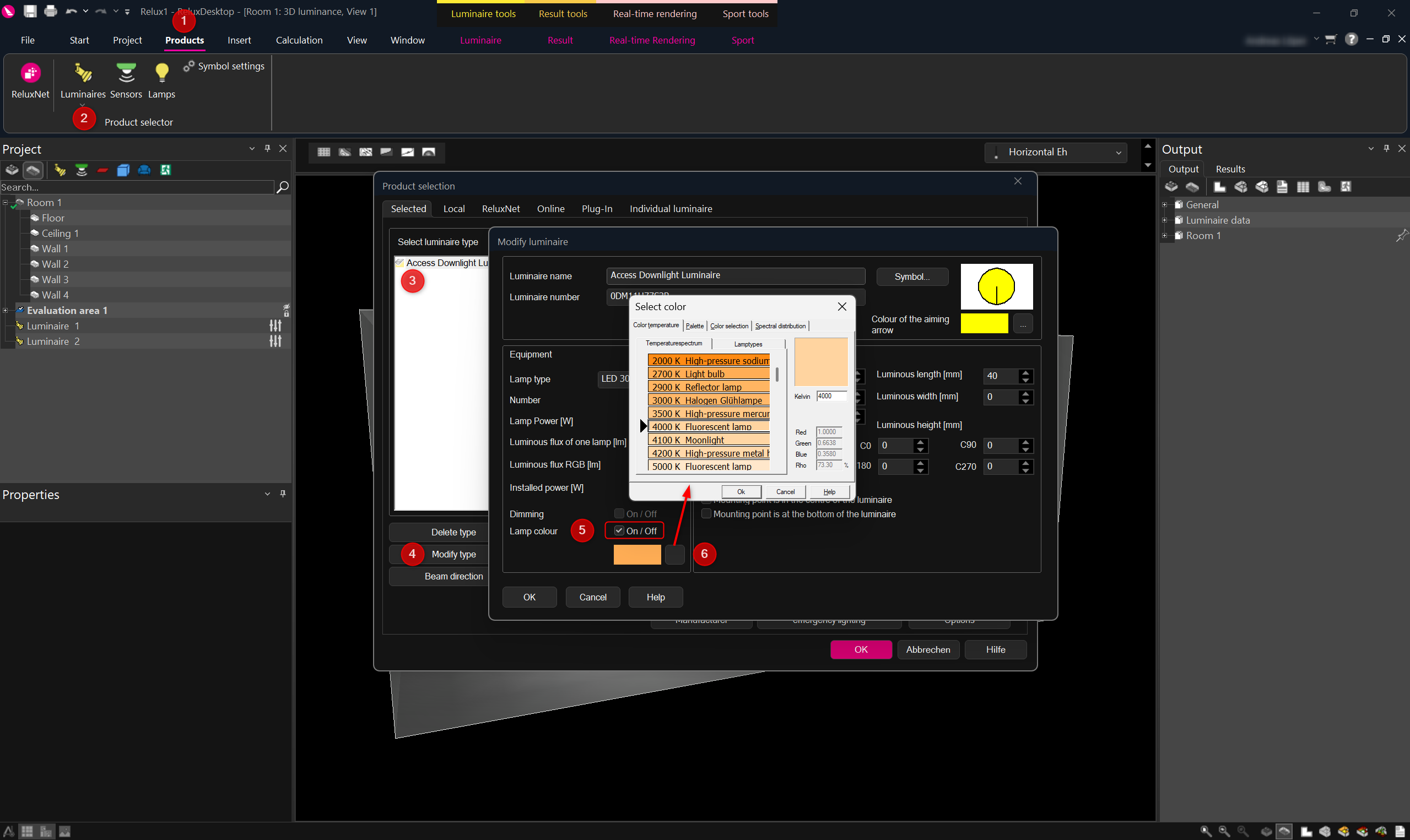
To ensure that the "dimming function" is available, you need to go to the product selection and open the "Edit luminaire" dialogue box to check that the "Dimming" option is enabled for the relevant luminaire type. This setting is enabled by default.
Please note: If the dimming function is enabled and a lamp colour other than white is being used at the same time, the initial luminous flux of a light placed in the scene will always be reduced. If you do not want the luminous flux to be reduced when such a lamp colour is active, you should disable the "Dimming" option.
As soon as the "
Dimming
" option is activated for a luminaire type, an additional "
Dimming
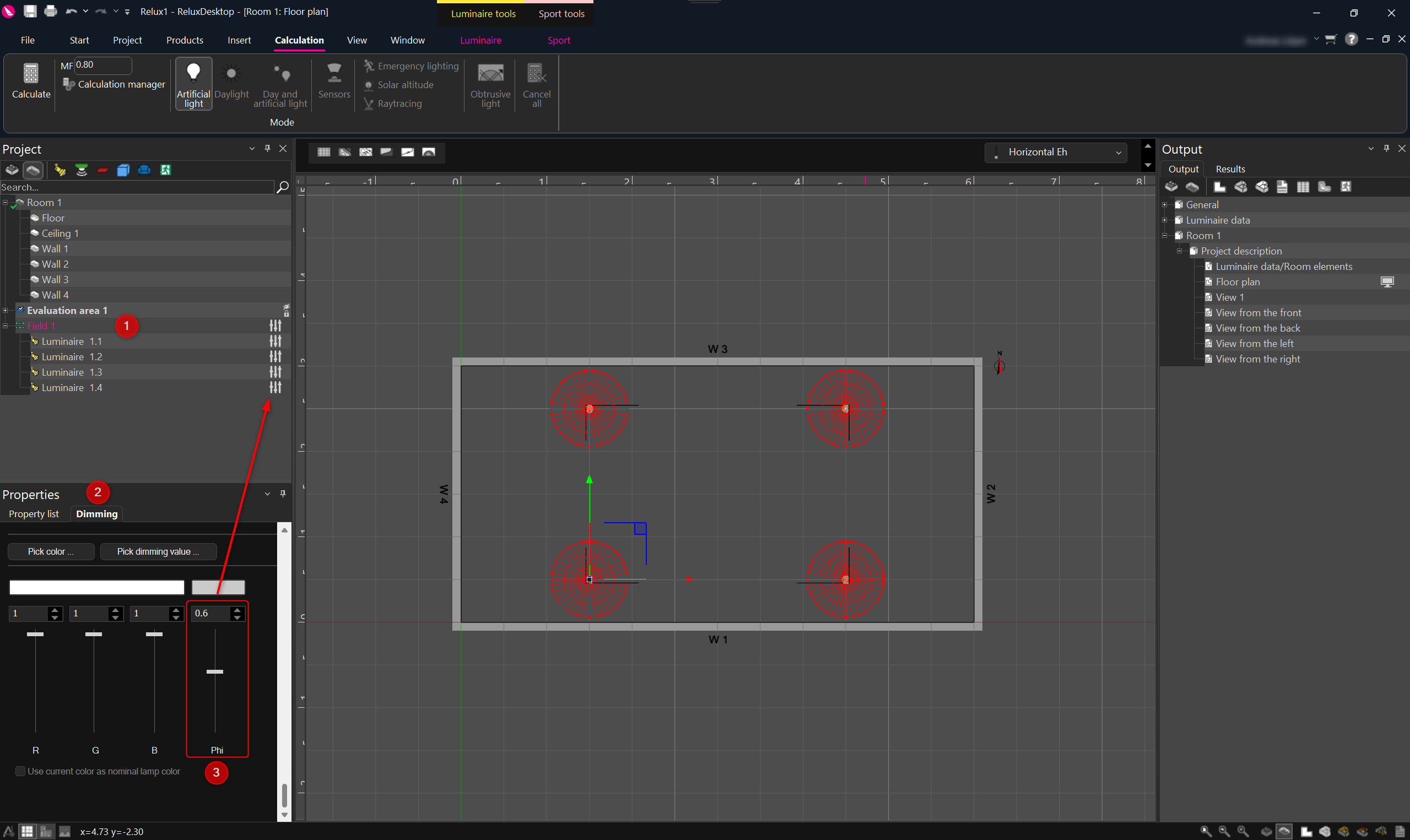
" tab (2) appears in the property window of the positioned luminaires. In this tab, it is possible to set the RGB value and also the luminous flux via controllers (3) as well as directly via input boxes. Colour values can also be adopted directly from a colour selection dialogue for the luminaire colour, or a dimming value already used in the scene can be allocated. Colour and dimming values can also be allocated via the "
Pick colour…"
and "
Pick dimming value
" buttons. The current colour value is then shown in a preview. The individual channels can be adjusted in the range [0...1].
As
soon as an RGB or luminous flux value of less than 1 has been set, the
luminaire in the scene tree is marked with a controller symbol. This
symbol indicates that the luminous flux of the luminaire differs from
the original luminous flux.
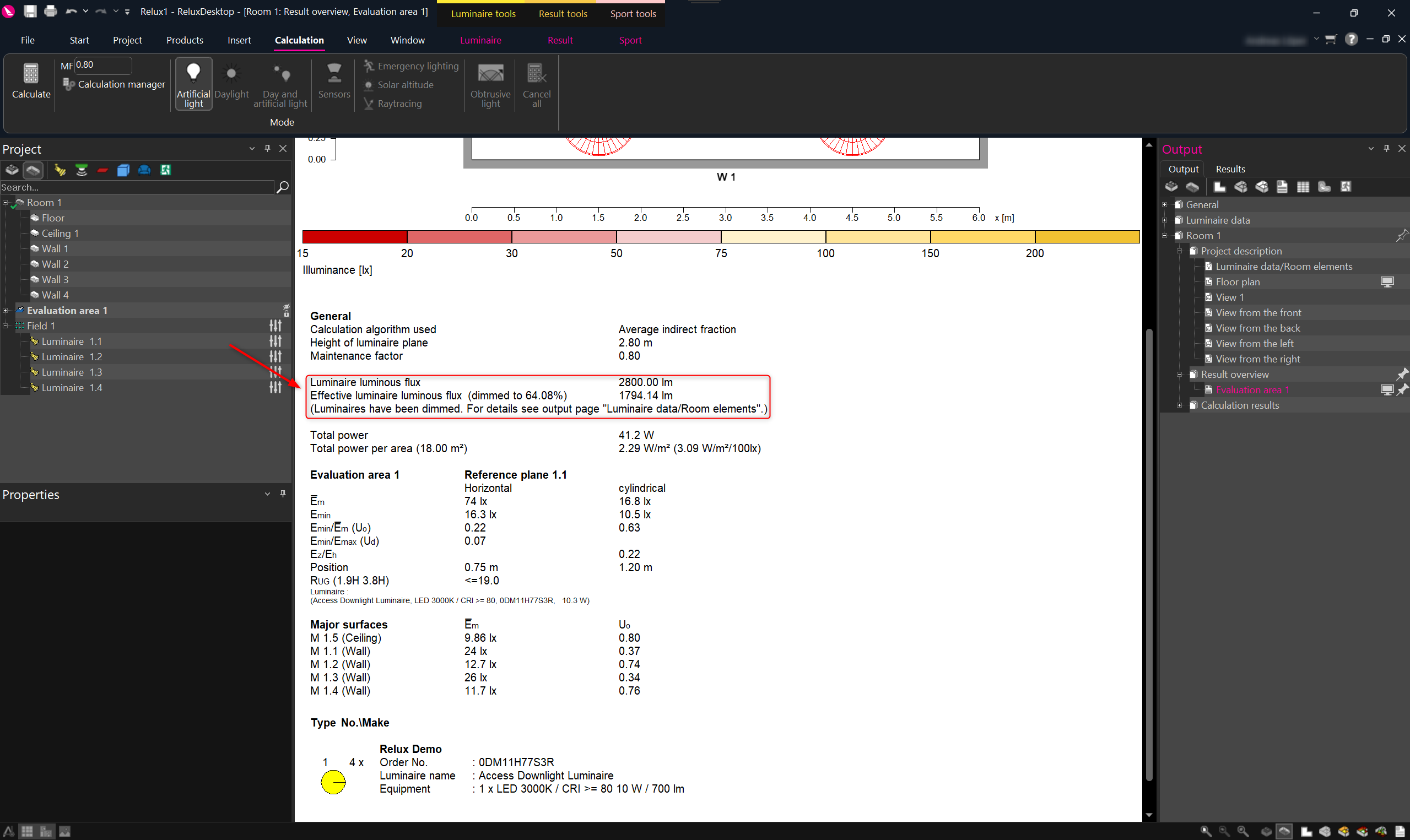
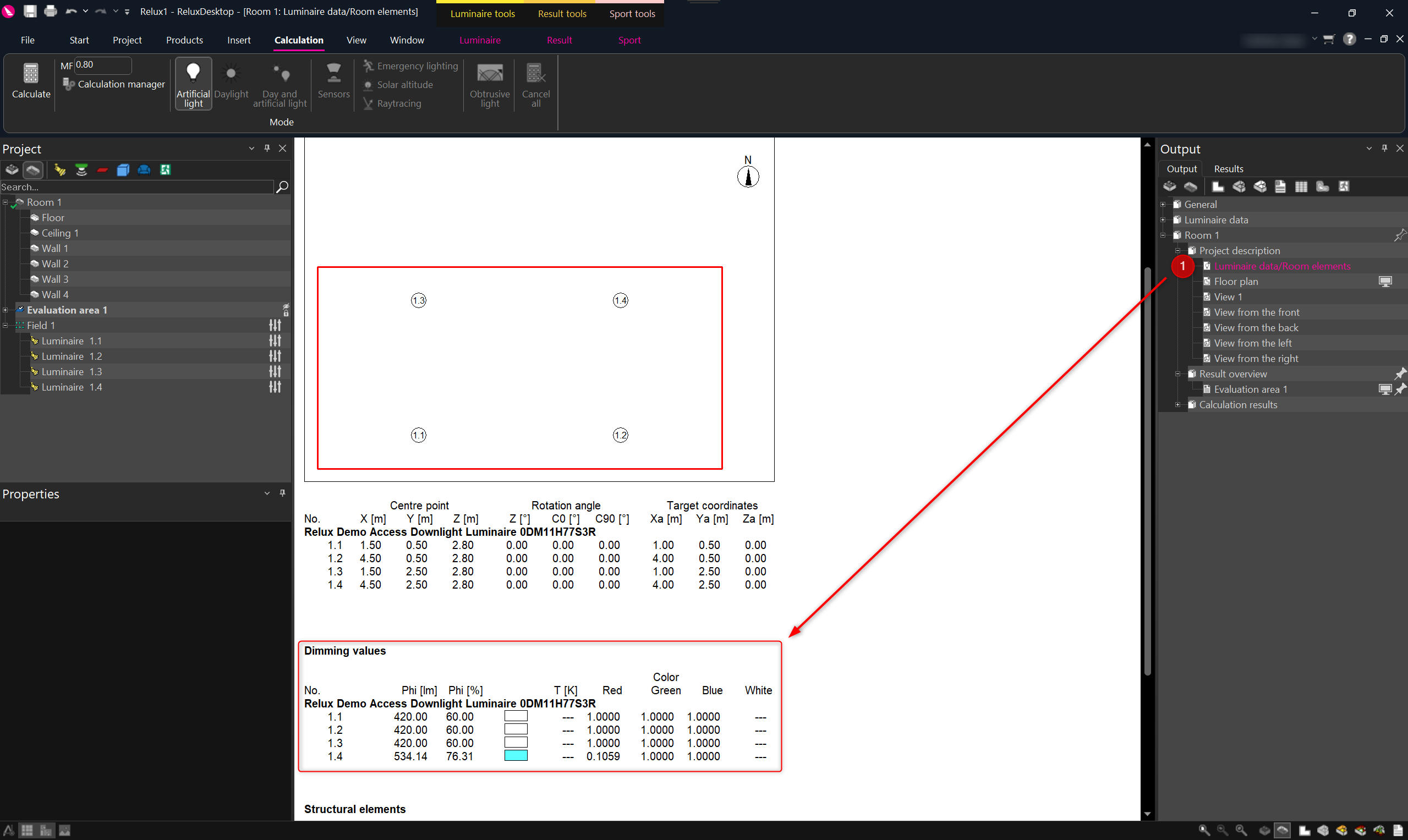
The "Result Overview" summarises the dimming value for all lights dimmed in the scene. Relevant information, such as individual luminous fluxes (Phi), RGB colour values and, where possible, the colour temperature in Kelvin for each light, can be found under "Output" > "Description" in the "Luminaire data/room elements" section (1).